
Living Room for DAZ Studio
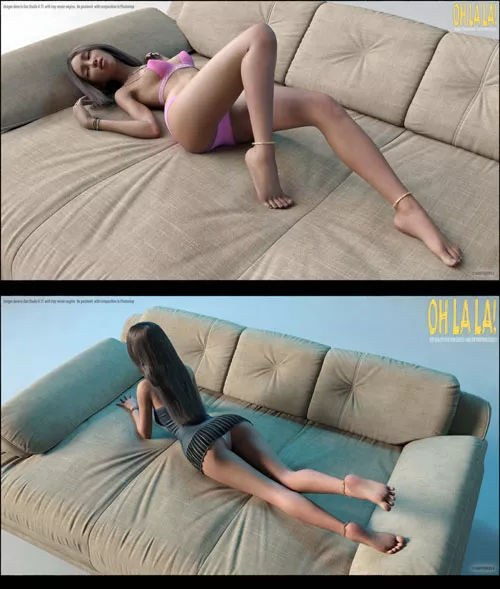
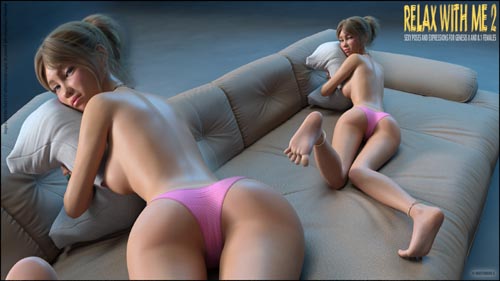
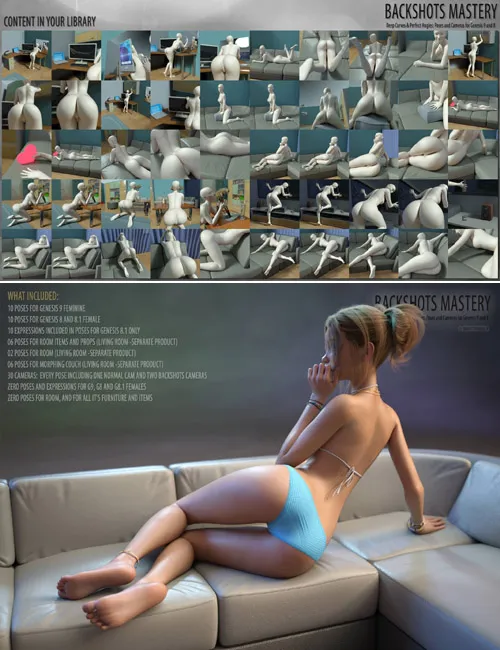
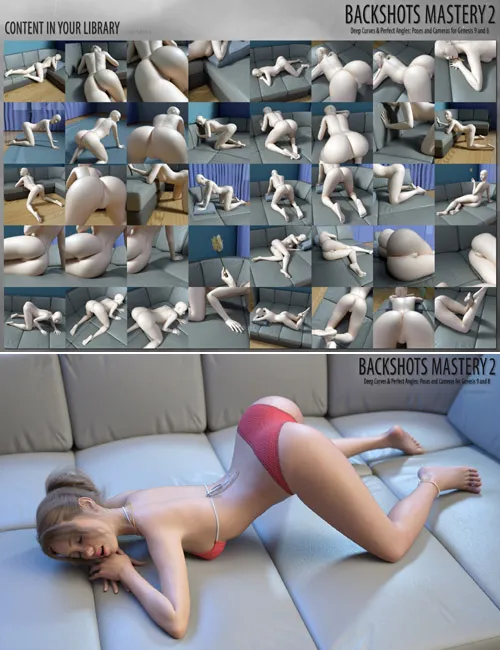
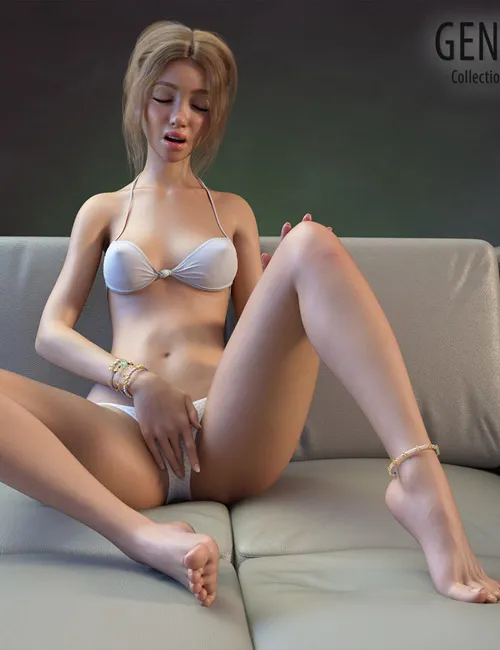
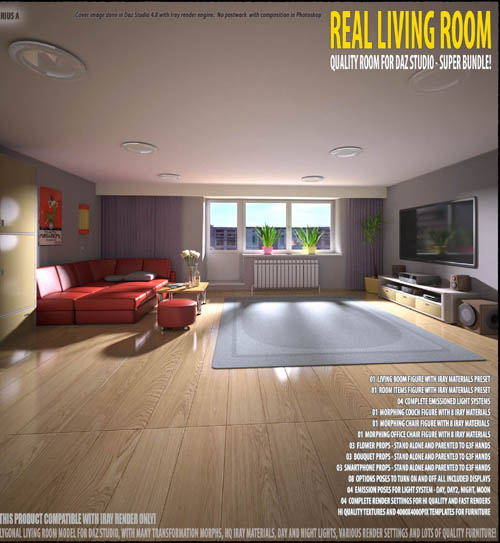
Living Room for DAZ Studio - Super quality room with many furniture, materials, morphs, and lights!
Included In This Package:
1 Living Room Figure with Iray Materials Preset
1 Room Items Figure with Iray Materials Preset
4 Complete Emission Light Systems
1 Morphing Couch Figure with 8 Iray Materials
1 Morphing Chair Figure with 8 Iray Materials
1 Morphing Office Chair Figure with 8 Iray Materials
3 Flower Props — Standalone and Parented to G3F Hands
3 Bouquet Props — Standalone and Parented to G3F Hands
3 Smartphone Props — Standalone and Parented to G3F Hands
8 Pose Options to Turn On and Off All Included Displays
4 Emission Poses for Light System — Day, Day 2, Night, Moon
4 Complete Render Settings for High-Quality and Fast Renders
High-Quality Textures and 4000 × 4000 px Templates for Furniture
USAGE!
Make sure that you will create your Camera with Headlamp Mode "Off", or "Auto"
Make sure that in Your Render settings "Auto Headlamp" mode set to "Never"
1. Load Room and all or any Items.
Go to your library - Environments -> sagittarius a -> LivingRoom, and double click any icons there.
* "LIVING ROOM" - main room without furniure.
* "LIGHTS" - Complete light system. This is figure with props, which have Emission materials. So these props will illuminating the scene.
* "CHAIR" - Morphing Chair figure with lots of transforming morphs.
* "CHAIR2" - Morphing Office Chair figure with lots of transforming morphs.
* "COUCH" - Morphing Couch figure with Ottoman.
* "ROOM ITEMS" - Room furniture, including Flowers, Coffee Table, Tv-Set and PC-Table - all with sub items.
2. Choose Day or Night illumination.
Example for Day:
Go to your library - Environments -> sagittarius a -> LivingRoom ->RenderSettings, and double click "DAY HI QUALITY" icon
In your scene, select "Lights" figure, Go to Library - Environments -> sagittarius a -> LivingRoom ->Materials Iray -> Lights, double click "DAY" icon
3. Standalone props.
All these props you will find in Library - Environments -> sagittarius a -> LivingRoom ->Props
"FLOWER STAND ALONE", "FLOWERS STAND ALONE" and "SMARTPHONE STAND ALONE" will load at zero coordinates, dropped to the floor.
Any parented props, you should drag and drop to your Genesis 3 figure.
For example, select your Genesis 3, click and drag and drop "FLOWER G3 LEFT HAND PARENTED" prop to your G3 left hand.
4. Working with materials.
All materials poses you will find in Library - Environments -> sagittarius a -> LivingRoom ->Materials Iray
Some tips about Lights.
Current light settings and materials - this is just template for you. Any changes by your hand will do better result!
You can hide or unhide any or some light props. For example, in your scene expand "Lights" figure, and hide every parts, except "PhotoLight".
As result, scene will be iluminated only with "PhotoLight" prop. Anyway, let's try to hide or unhide some "Lights" parts, to get better result for you.
Also, you cand change illumination intensity, and illumination colors for any light prop in the scene.
To do that, select "Light" figure in your scene, go to "Surfaces" tab, expand "Lights" there, next expand what you need, for example "BackBra",
find out Emission, and change "Emission Color" or "Luminance" settings at your taste. Dont forget and make sure, that BackBra part is visible in "Lights" figure.
"Sun" prop - You can change Emission color and Luminance. You can move and scale this prop for better result.
To make this prop visible, go to it's material, click "Geometry", and set Cutout Opacity to 1.
"PhotoLight" prop. - This prop is not visible in Render. This prop can help you illuminate your characters for better result.
You can change Emission color and Luminance. You can move and scale this prop for better result.
To make this prop visible, go to it's material, click "Geometry", and set Cutout Opacity to 1.
Room tips.
You can hide "BALCONY" for better Day illuminance.
You can move any Wall and Ceiling, to find out better composition. This will helpfull especially, when you use Portrait and Zoom cameras.
To do this, select "LivingRoom" figure in your scene, go to "Parameters" tab, and find out "Morphs". You will find all movement morphs there.
Chair tips.
You cand hide or unhide pillows and ottoman. There are lots of transformation morphs.
Just expand "Chair" figure in your scene. You will find morphs in "Body", "Pillow", "Pillow2" and "Ottoman" body parts.
Chair2 tips.
There are lots of transformation morphs.
Just expand "Chair2" figure in your scene. You will find morphs in "Chair2", "Legs", "Tube", and "Seat" body parts.
Couch tips.
You cand hide or unhide pillows and ottoman. You can move and scale Pillows and Ottoman.
You can change Couch into Bed, by hiding or unhiding "Bed" body part.
SUPPORT LINK
https://www.renderhub.com/sagittarius-a/living-roomDOWNLOAD
https://nfile.cc/***/renderhub-living-room.rar.htmlYou must login to show full link. No account? Create Account