
TattooArtist for DAZ Studio

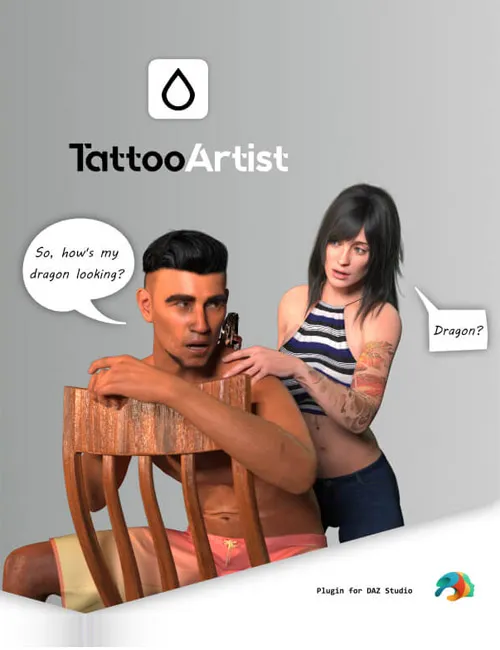
Put any image on your figure by clicking where you want it.
Load a PNG, arm Place, click the skin in the viewport, and the tattoo is there — on the shoulder, on the ribs, on the back of the hand. No UV coordinates to type, no skin map to open in Photoshop, no texture to overwrite. Slide it, turn it, resize it, change its blend, or delete it: your figure's own skin files are never touched, and one button puts everything back the way it was.
KEY FEATURES
- Place It Where You Click
Arm "Place" and click the figure's skin. The decal lands centred on the spot you clicked, following the surface. That is the whole point of the plugin: Daz Studio's own Layered Image Editor can composite a tattoo, but only at pixel offsets you type into a dialog, with no way to see where that lands until you look.
- Seams and UDIM Tiles Are Not a Wall
A tattoo is projected onto the geometry, not pasted into a single texture. It follows the figure's real unwrap across UV seams, and when the spot you pick straddles two of Genesis' skin surfaces — hip to thigh, shoulder to arm, back to hip — the artwork is split across both maps, each in its own UDIM tile, and reads as one continuous piece on the mesh. Nothing to line up by hand, nothing clipped at the border.
- Wrap Around a Limb, 360 Degrees
A second mode, "Wrap (360)", takes an arm, a forearm, a thigh or a calf and runs the image the whole way around it — armband, sleeve label, wrapped ribbon. It maps onto the figure's own UV island, so it follows the model's real unwrap and hides its joint on the inner side of the limb, where a tattooist would put a seam. "Turn" slides the artwork around the limb (and moves that joint with it), "Vertical position" walks the band up and down, and "Length" sets how much of the limb it covers.
- Adjust It After the Fact, Live
Every decal keeps its own row of controls: Scale, Rotate, Opacity, Blend (Normal, Multiply, Overlay, Screen, Soft Light, Darken, Lighten on Daz Studio 6 — see the note below for Daz Studio 4), and Flip horizontal / Flip vertical. Wrapped decals swap Rotate and Position for Turn, Vertical position and Length. Change your mind about the spot and hit "Replace": the next click on the skin moves that decal, keeping everything else.
- Nothing Is Ever Written Over Your Skin Textures
A decal is a layer stacked on top of your figure's existing maps, both on Base Color and on Translucency, so a tattoo reads correctly under Iray's skin shading instead of glowing through it. Your skin files on disk are read and never modified. "Restore original skin" hands the figure back exactly as it came, whatever you did to it.
- As Many Decals as You Want
Stack them, reorder them, remove them one at a time. Each row can be renamed by double-clicking it, so ten decals from the same source file are still telling each other apart on a busy figure.
- Duplicate, With Symmetry
One button copies a decal, with a choice of where the copy goes: right on top of the original, mirrored left/right, or mirrored top/bottom. Two optional checkboxes flip the artwork itself. The copy inherits the size, rotation, opacity and blend of the original — the usual way to get a matching pair of sleeves or shoulders without aiming at the mirror point by eye.
- It Survives Save and Reload
Decals are stored on the figure itself and come back with the scene. On save, each source image is copied into a decal assets folder of your choosing, so a scene you reopen next year does not depend on the PNG still sitting in your Downloads folder. Change that folder later and the plugin offers to move what is already there.
- One Undo, the Normal One
Placing, moving, adjusting and deleting are ordinary Daz Studio undo entries. Ctrl+Z once and the last thing you did is gone.
- Fast While You Work, Full Resolution When It Counts
Editing bakes at a working resolution so the sliders stay responsive. Press "HD preview" to reload the tattooed surfaces at their full texture size and see exactly what will render — and when you actually hit Render, the plugin promotes them to native resolution on its own, without being asked.
- Flatten When You Are Done
"Flatten" merges the decals and the skin into new flat textures — one PNG per affected surface, written to your assets folder and assigned there. The result is an ordinary textured figure you can hand to anyone. The untattooed textures are still remembered, so "Restore original skin" undoes even that.
- Any Image, Including Ones Without Transparency
A PNG with an alpha channel is the ideal case. A scanned flash sheet or an ordinary JPEG works too: set Blend to Multiply and the white background drops out while the black linework reads as ink. The plugin tells you when the image you loaded has no transparency.
WHO IT IS FOR ------------------
Anyone who has wanted a tattoo, a logo, a brand, a sticker or a printed mark on a character and stopped at the thought of editing the skin map by hand. Character artists, comic and story renderers, anyone building a recurring character who needs the same marks in every scene.
REQUIREMENTS ------------------
- Daz Studio 6 (Qt6-based release), or Daz Studio 4.20 or later.
- Windows 64-bit.
- Both plugin files are included in this package; install the one matching
your Daz Studio version, or both if you use both.
- Figures using Daz's Iray Uber skin materials. Developed and tested on
Genesis 3, Genesis 8 and Genesis 9.
SCOPE AND LIMITATIONS ------------------
Stated plainly, because knowing what a tool does not do is part of trusting what it does.
- A decal stops at the edge of the figure's own skin. It crosses UV seams and
surface borders freely (see "Seams and UDIM Tiles Are Not a Wall" above), but it does not jump across a break in the geometry: it will not carry over onto clothing, a prop, or a second figure. Whatever the skin mesh reaches, the decal reaches.
- Welded geometry is not paintable for now — under active exploration. This
covers both ends of the range: small grafted add-ons such as genitals, and whole grafted bodies such as a centaur's horse half or a creature's lower body. All of them are stitched into the figure's mesh but keep their own surfaces and their own texture layout, so a tattoo currently has nowhere to land on them. Clicking one is refused with a message naming what was clicked, rather than quietly doing nothing, and the figure's own skin stays paintable as normal right up to the weld. Lifting this is being worked on and a full grafted body is the most promising case, since it carries a proper texture layout of its own — but there is no promise on when, or that it will prove possible.
- The first decal on a figure takes longer than the ones after it. That is by
design: the first one bakes the whole figure once, at full quality, and every decal after it rebuilds only the surface it touches. The more tattoos you place, the more that pays off.
- Mirroring follows the UV map, not the anatomy. On a torso, "Mirror left /
right" swaps sides of the body. On the arms it is "Mirror top / bottom" that moves the copy to the other arm — Genesis stacks the two arms vertically in its layout. Both mirrors move the decal only; the artwork itself is never reversed unless you tick a Flip box.
- The 360 wrap covers arms, forearms, thighs and calves. It follows the
figure's own unwrap, so how evenly the band sits depends on that unwrap: on the shared Genesis 8 / Genesis 3 calf island the band can drift by a noticeable fraction of its height, while a forearm or a Genesis 9 limb sits straight. Turn and Vertical position let you place it where you want it.
- Base Color and Translucency are the channels a decal writes to. Bump,
specular and normal maps are left alone, so a tattoo is ink on the skin, not raised or glossy relief.
- Eyes, nails, mouth, teeth and hair surfaces are refused on purpose, by
surface name. An oddly named third-party clothing material can still accept a decal — if that happens, undo and click the skin instead.
- Genesis 1 and Genesis 2, and non-Iray-Uber shaders such as 3Delight or
PBRSkin, are outside what has been tested.
- Blend modes on Daz Studio 4: Daz Studio 4's layered images offer four blend
modes where Daz Studio 6 offers twenty-odd, so the Daz Studio 4 build lists Normal, Multiply, Add and Subtract. Multiply — the one that matters for an image without transparency — is there on both. A scene authored on Daz Studio 6 with, say, Overlay opens on Daz Studio 4 drawn with the closest available mode, and the pane says so when it loads the figure. Everything else in the plugin is identical on both versions.
FAQ ------------------
Q: Does this modify my figure's skin textures?
A: No. Your texture files on disk are read, never written. The plugin builds a
layered texture on top of them and assigns that to the surface. "Restore original skin" puts the originals back on the figure.
Q: My tattoo shows as a white square. What happened?
A: The image has no transparency. Set that decal's Blend to Multiply: the
white drops out and the dark linework stays. The plugin says so in its status line when you load an image without an alpha channel.
Q: Do the decals come back when I reopen the scene?
A: Yes. They are stored on the figure. On save, the plugin also copies each
source image into the decal assets folder set in its settings (gear icon), so the scene no longer depends on where the original file was when you picked it.
Q: Can I still edit the decals after flattening?
A: No — flattening is the point at which they stop being layers and become
pixels in a texture. The list is cleared and it is not an Edit-menu undo. The untattooed textures are still remembered, so "Restore original skin" takes the figure back to bare skin.
Q: Can I use it on clothing or props?
A: It is built and tested for skin. Any surface with a color map will take a
decal, so it may well work, but the placement maths and the 360 wrap assume a Genesis-style body unwrap.
Q: Can I tattoo a centaur, a creature body, or a grafted add-on?
A: Not yet. The human half of a centaur is fully paintable, and so is any
conforming piece with its own mesh. What is refused is welded geometry — the horse half, a creature's lower body, a grafted add-on — because it is stitched into the figure's mesh while keeping its own texture layout, so there is nowhere for the ink to land. Clicking one tells you so by name. This is being actively explored, with grafted bodies the most promising case, but it is not promised for any particular release.
Q: Something did not go the way I expected. Where do I look?
A: Open the Daz Studio log (Help > Troubleshooting > View Log File) and search
for the lines starting with "TattooArtist:". Every placement, rebuild, flatten and file copy is written there, which is all a support request needs.
CHANGELOG
1.1.0 - 2026-09-03
- Fixed: on a figure carrying grafted geometry, a decal could be written into the wrong
surface. Daz builds the figure's working mesh from the surfaces that still have polygons, so a graft that removes some of them shifts the whole list. On a centaur, for instance, the human legs are gone from the mesh but still listed on the figure, and from that point on every surface addressed the one before it — a decal placed on the face was written into the legs' texture, where its UVs land nowhere, and reported as dropped. Surfaces are now matched by name, so the list can shift freely without anything landing in the wrong place. Figures without grafts are unaffected.
- Welded geometry now says no clearly. Grafted add-ons — genitals, and whole grafted bodies
such as a centaur's horse half — keep their own surfaces and their own texture layout, separate from the figure they are welded into, so a tattoo has nowhere to land on them. Clicking one used to do nothing at all, with no message; on Daz Studio 4 it wrongly reported that there was no surface there. It is now refused on the spot in both builds, naming the surface and what it belongs to. The figure's own skin remains fully paintable right up to the weld. Painting welded geometry is being explored for a future release.
- Flattening now shows what it is doing. Merging decals into flat skin textures can take
anywhere from a few seconds to a few minutes on a heavily tattooed figure, and until now the panel simply stopped responding for the whole of it, with no sign that anything was happening. Confirming "Flatten decals" now brings up a progress dialog with a spinner and a running count of the surfaces being mapped, prepared and flattened, so the wait is accounted for instead of looking like a freeze.
1.0.0 - 2026-08-31
- Bump requirement to DAZ 4.20 (dependency on a dll not shipped with DZ before)
1.0.0 - 2026-08-29
- Initial release.
SUPPORT LINK
https://www.renderhub.com/ap3nciler/tattooartistDOWNLOAD
https://nfile.cc/***/tattooartist.rar.htmlYou must login to show full link. No account? Create Account