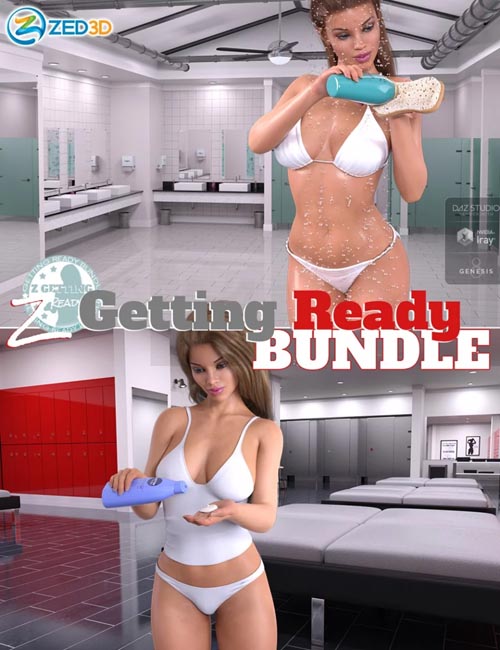
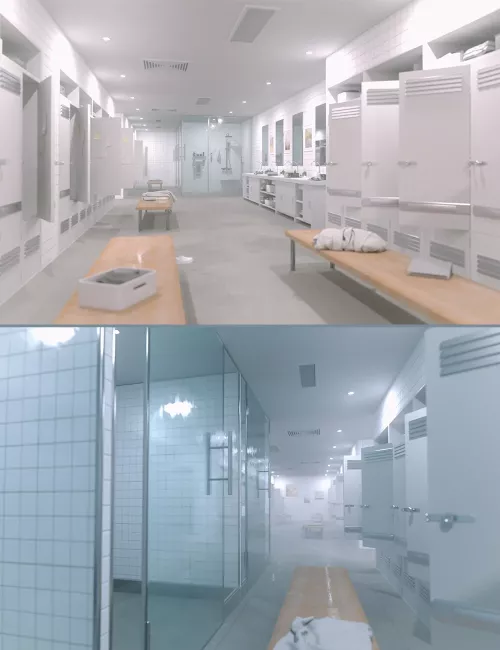
Z Getting Ready Bundle

by BBlK | on 07-May-19 | 3 comments |
Related Articles
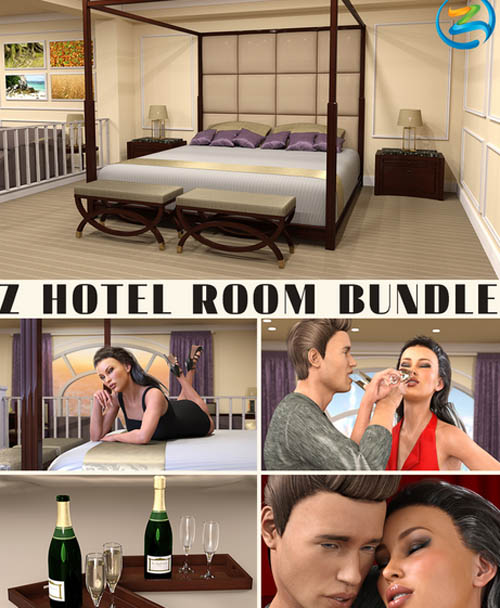
Z Hotel Room Bundle
Z Hotel Room Bundle Detail link: Details This bundle...
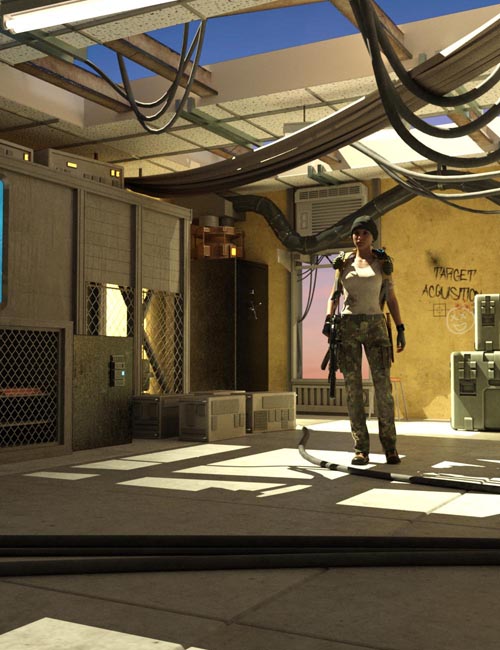
Spartech Ready Room
Spartech Ready Room Detail link: The Spartech Ready Room...
Japanese Portrait Studio Bundle
Japanese Portrait Studio Bundle Detail link: Need a great...
Z Getting Ready Bundle

SUPPORT LINK

https://daz3d.com/catalog/product/view/id/57337

DOWNLOAD

https://nfile.cc/***/.rar.html
You must login to show full link. No account? Create Account
If link broken, comment under article. Click here to Read the rule before request
Category: Daz3D |
Comments (3)
  1. On 8 May 2019 16:47 Astarod said:
    Only contains "Z Changing Room Environment"
    Complaint
  2. On 2 October 2019 13:29 goodboi said:
    Quote: Astarod
    Only contains "Z Changing Room Environment"

    Yes, it only contains "Changing room environment"
    Admin, can you please update it. Much thanks :)
    Complaint
  3. On 24 July 2021 12:18 Gamer said:
    Quote: goodboi
    Quote: Astarod
    Only contains "Z Changing Room Environment"

    Yes, it only contains "Changing room environment"
    Admin, can you please update it. Much thanks :)

    Yep, it appears to only contain the 'Z Changing Room Environment', that is if you use the install manager.

    The install manifest file (Manifest.dsx) in this zip file only contains the information to install the files for the 'Z Changing Room Environment', however all of the files for the whole bundle are in the zip file. I suspect that the 3 original zip files for the bundle got merged and only 1 of the 3 manifest.dsx files survived the merge.

    So you will have to treat this content like any other 3rd party content and install it manually. But the problem with manually installing content is that Daz Studio does not know that the content was installed or where to look for the meta data - so you won't see the content in the Smart Content Tab - but there is a workaround.

    After you install the content manually (Lookup a tutorial on How to Install Content to Daz w/o Install Manager) you will have to tell Daz Studio where to find the meta data. The easiest way I know of, is to copy the 3 meta data files - or in this case 9 files - from the 'Support' folder (YourZippedContent.zip\Content\Runtime\Support\) to the 'RunOnce' folder (C:\Users\Username\AppData\Roaming\DAZ 3D\Studio4\RunOnce\), if the RunOnce folder doesn't exist, create it.

    Now that you have placed the meta data files in the 'RunOnce' folder, start - or restart - Daz Studio and a dialog box will appear, letting you know that new content meta data was found. Just click OK or Next or whatever and you're done, everything is there, meta data and all.

    Happy Rendering.
    Complaint
Information
Users of Guests are not allowed to comment this publication.